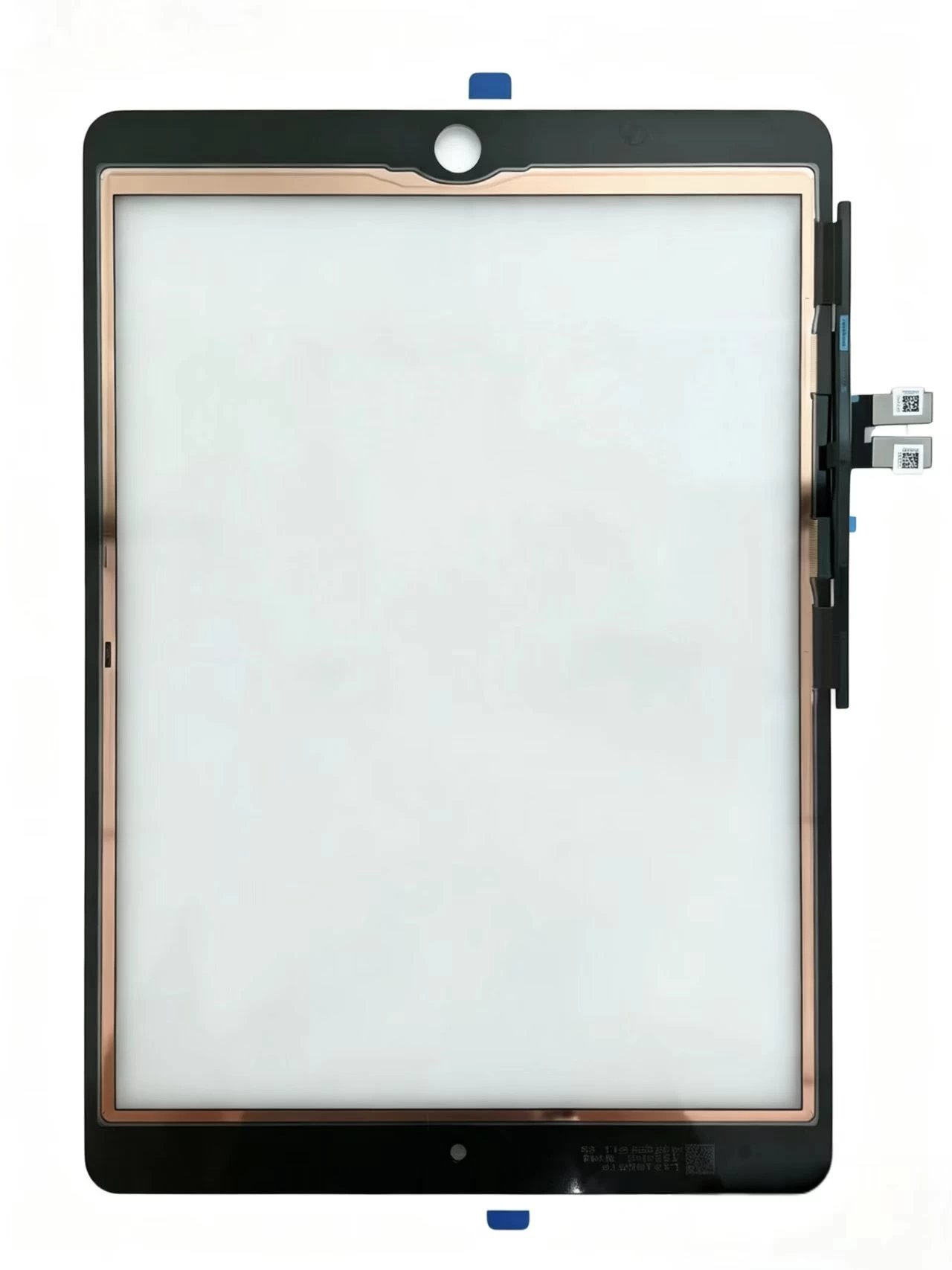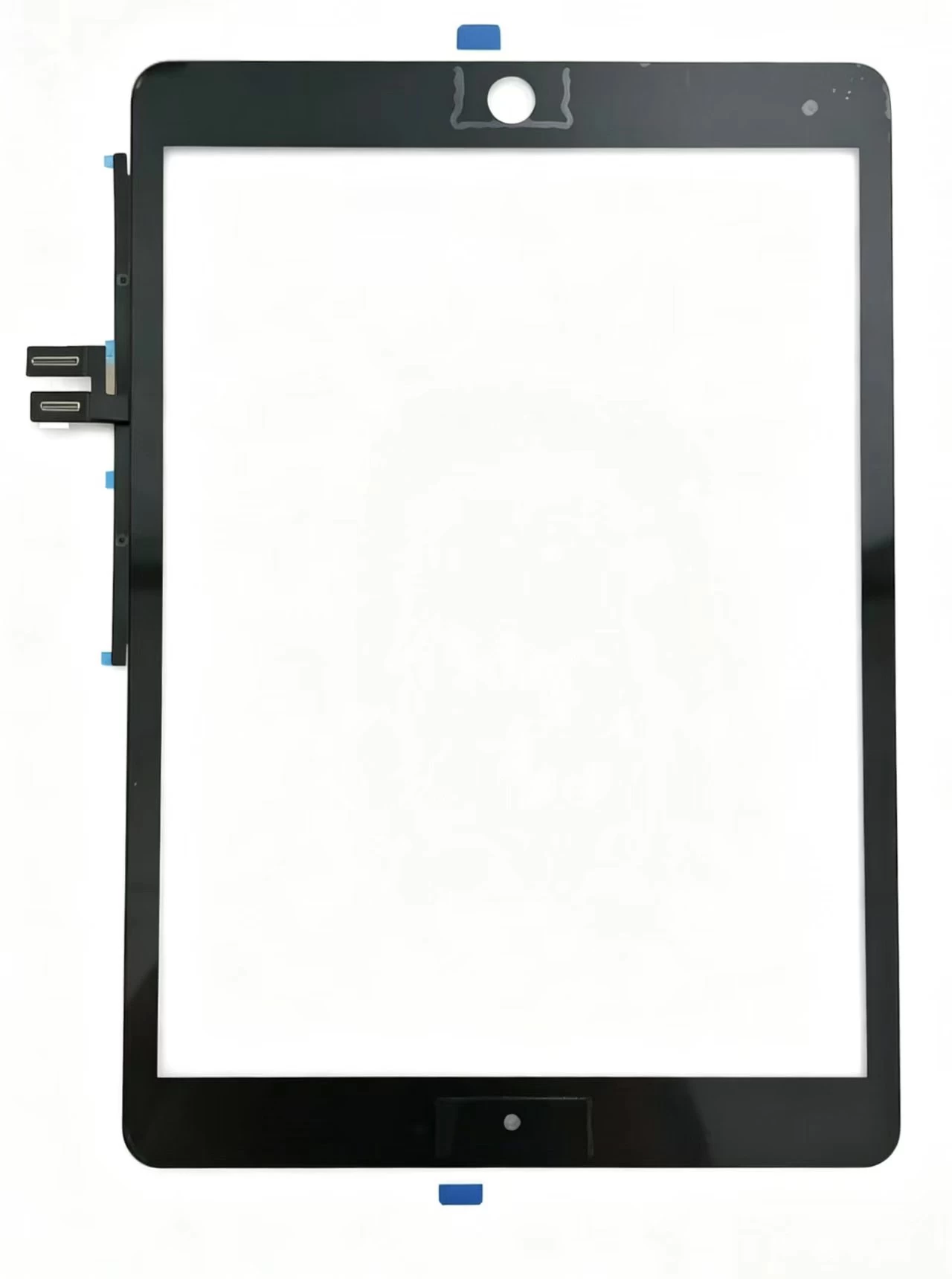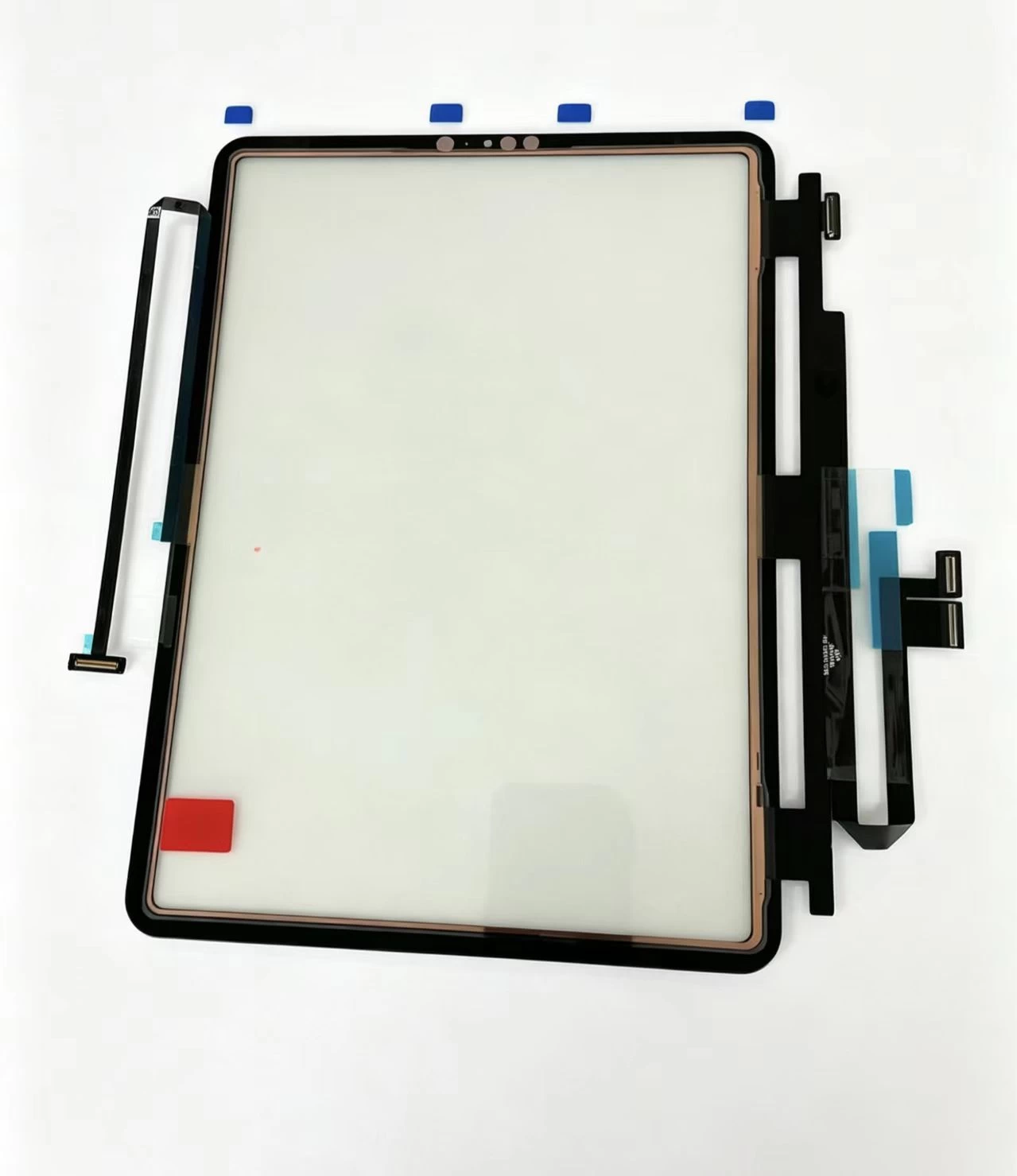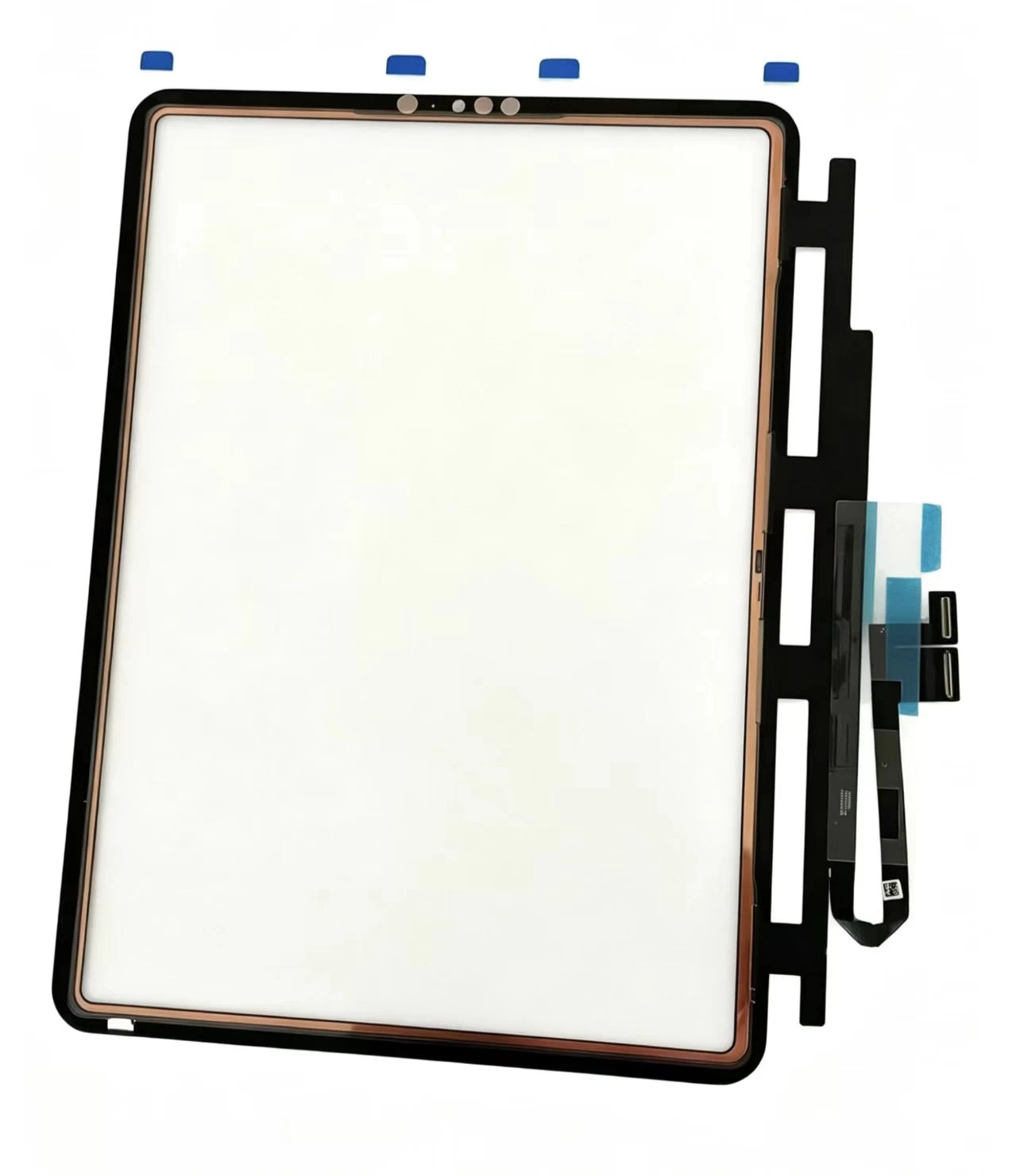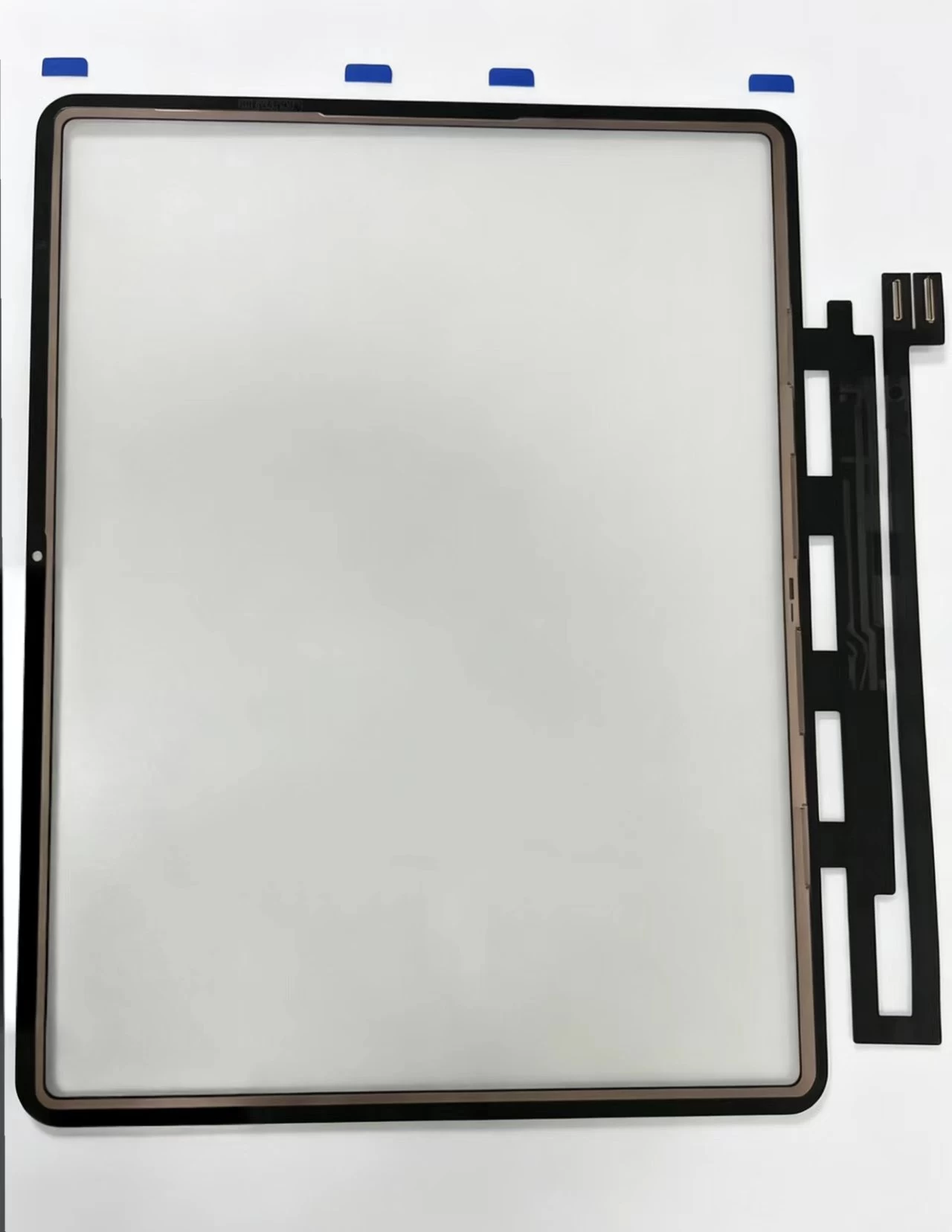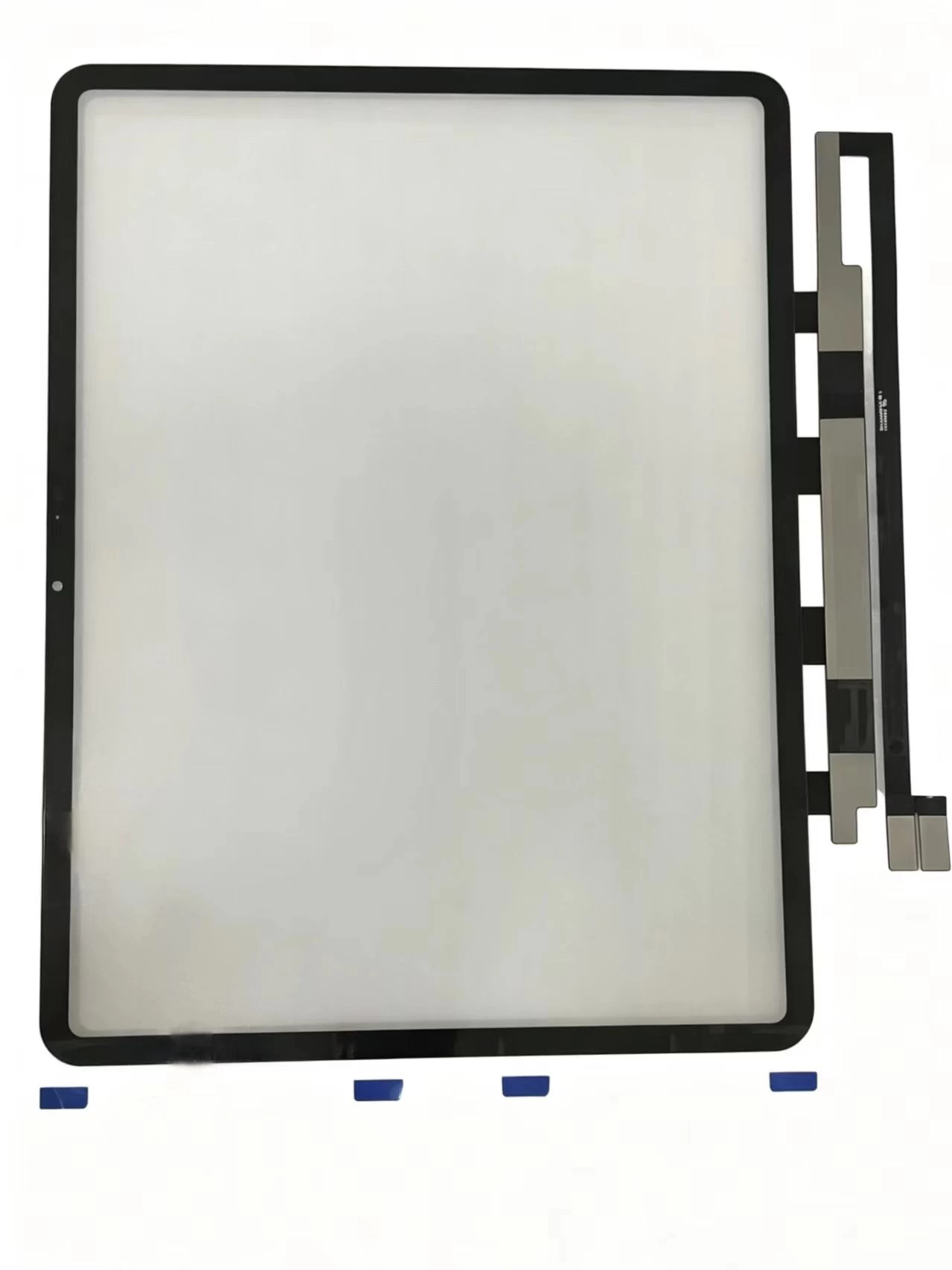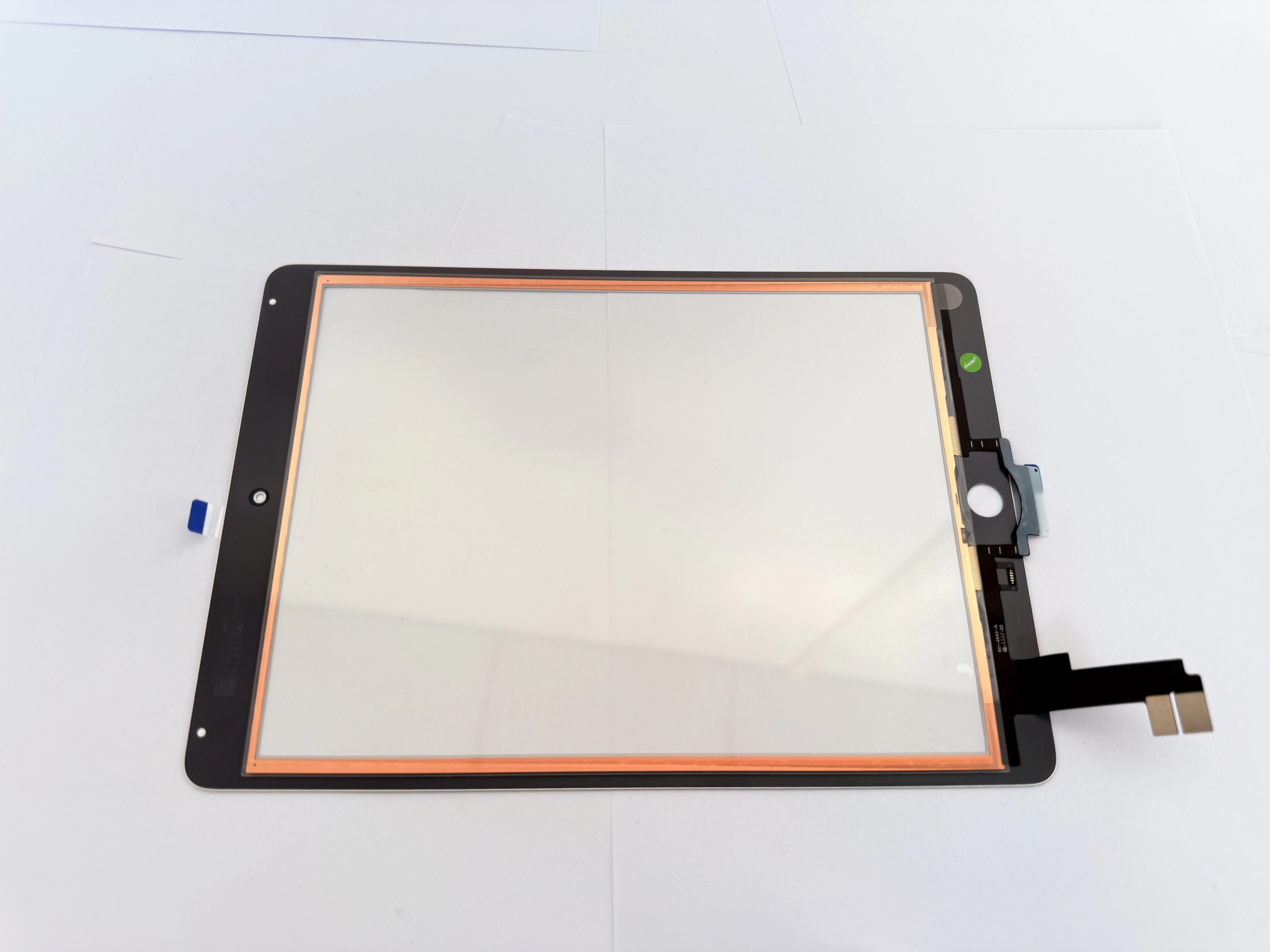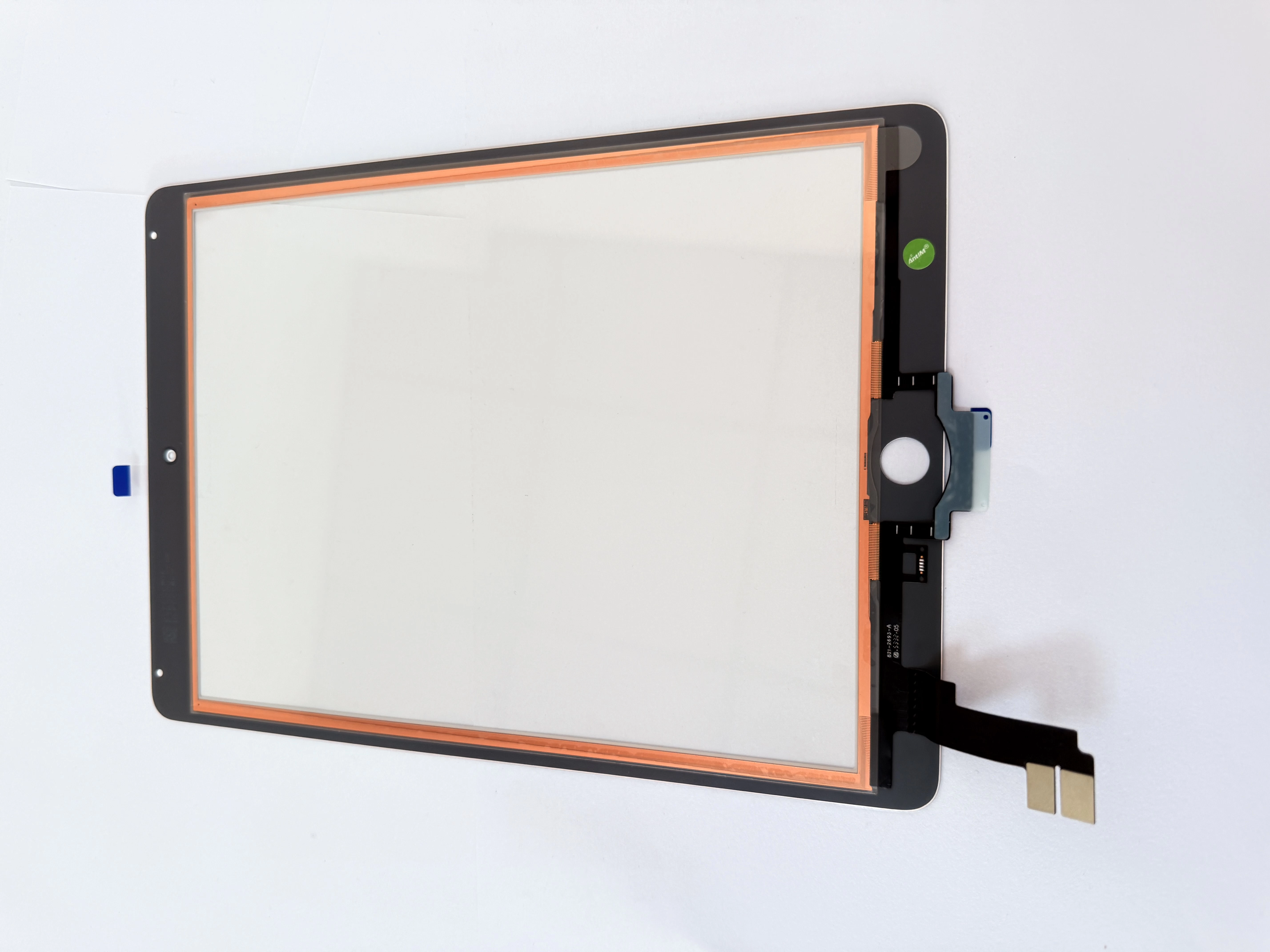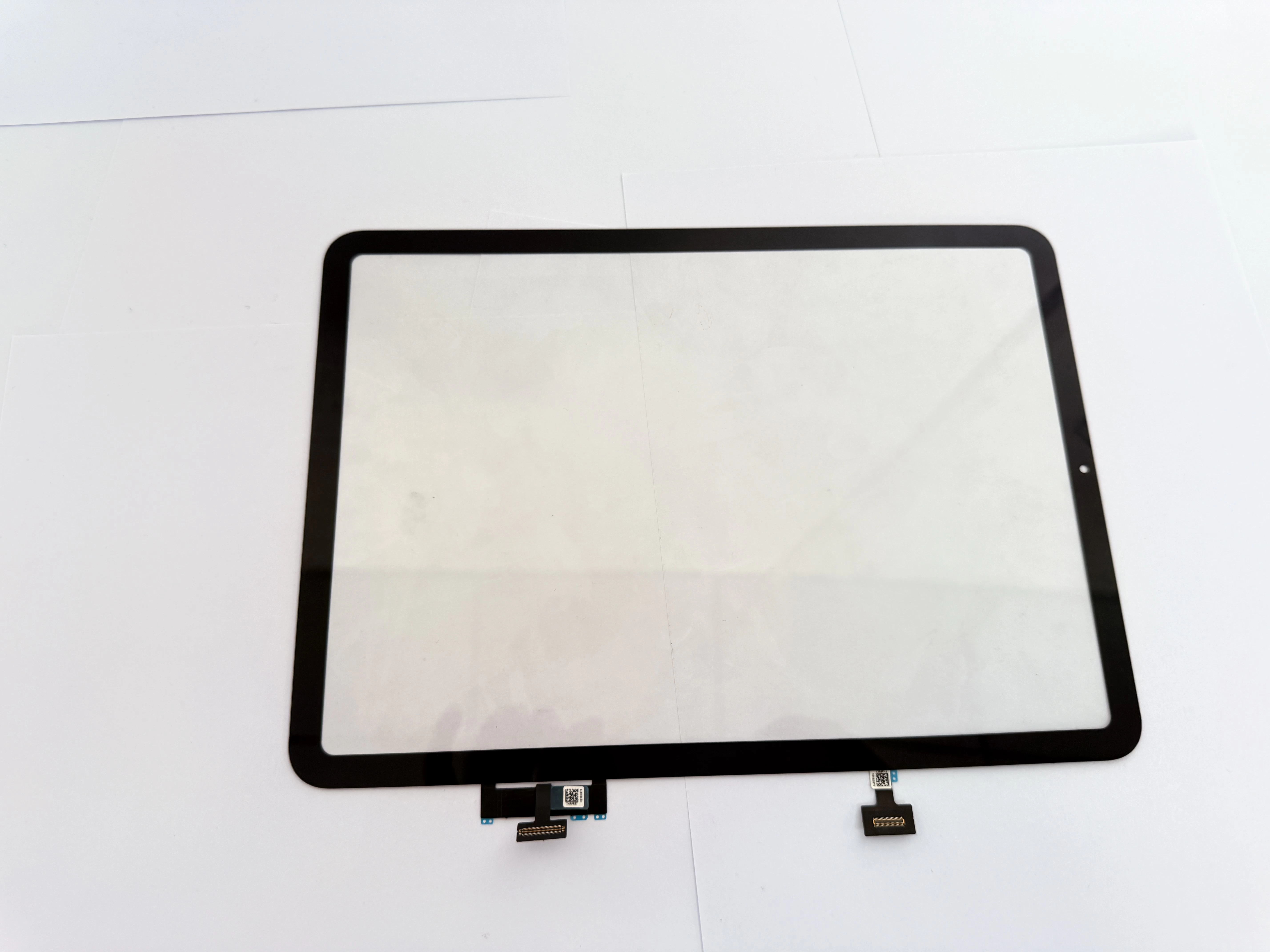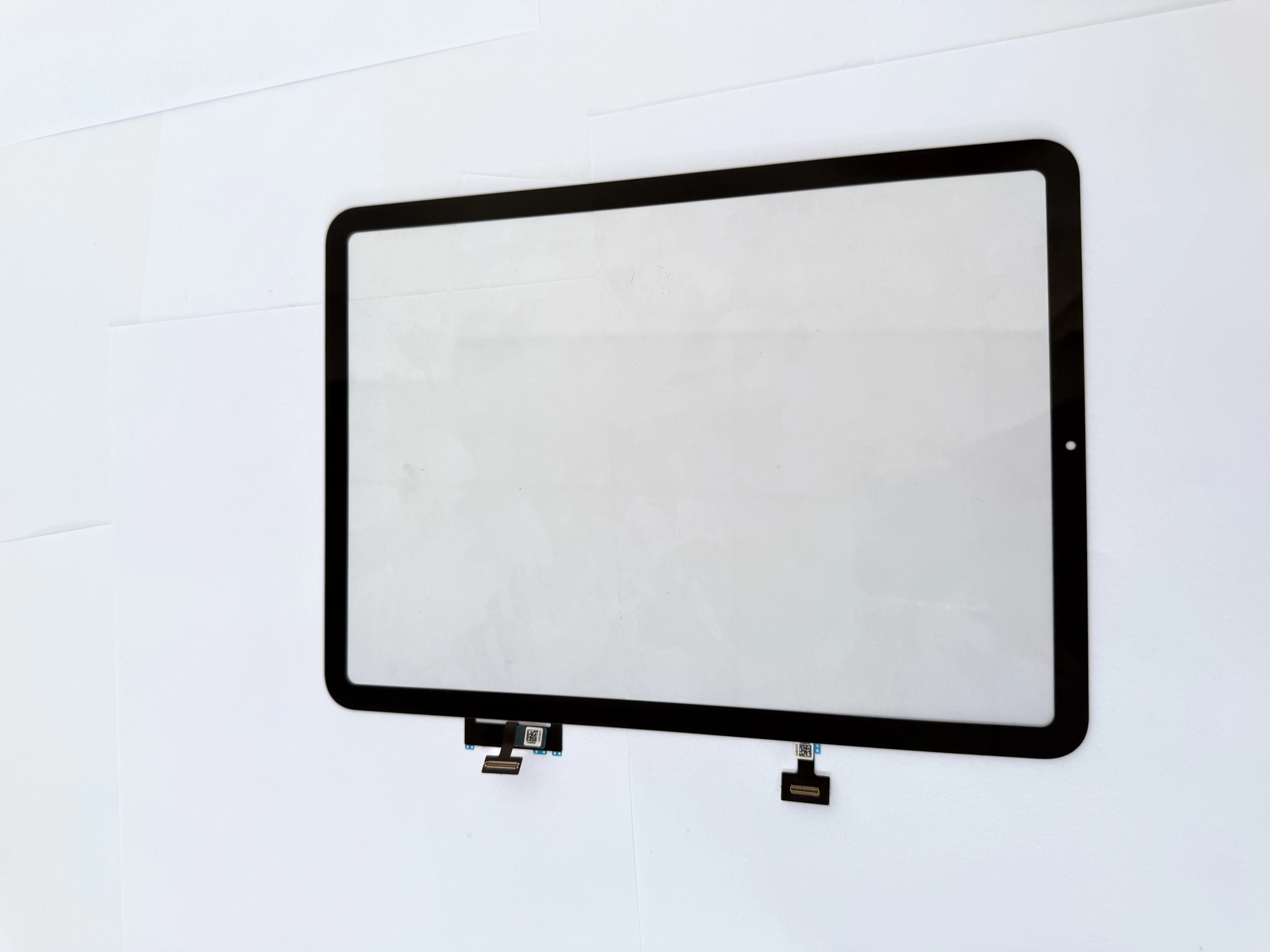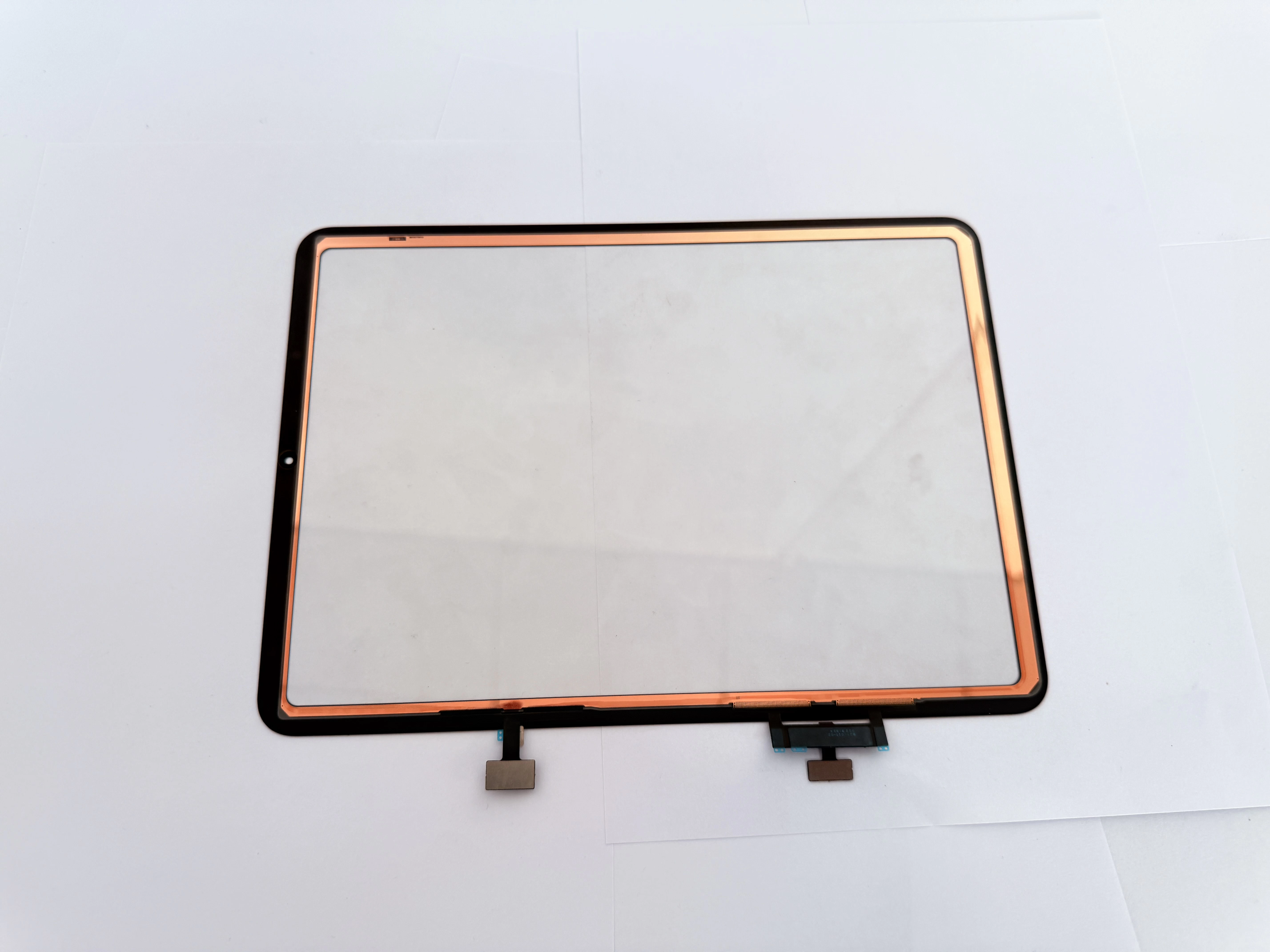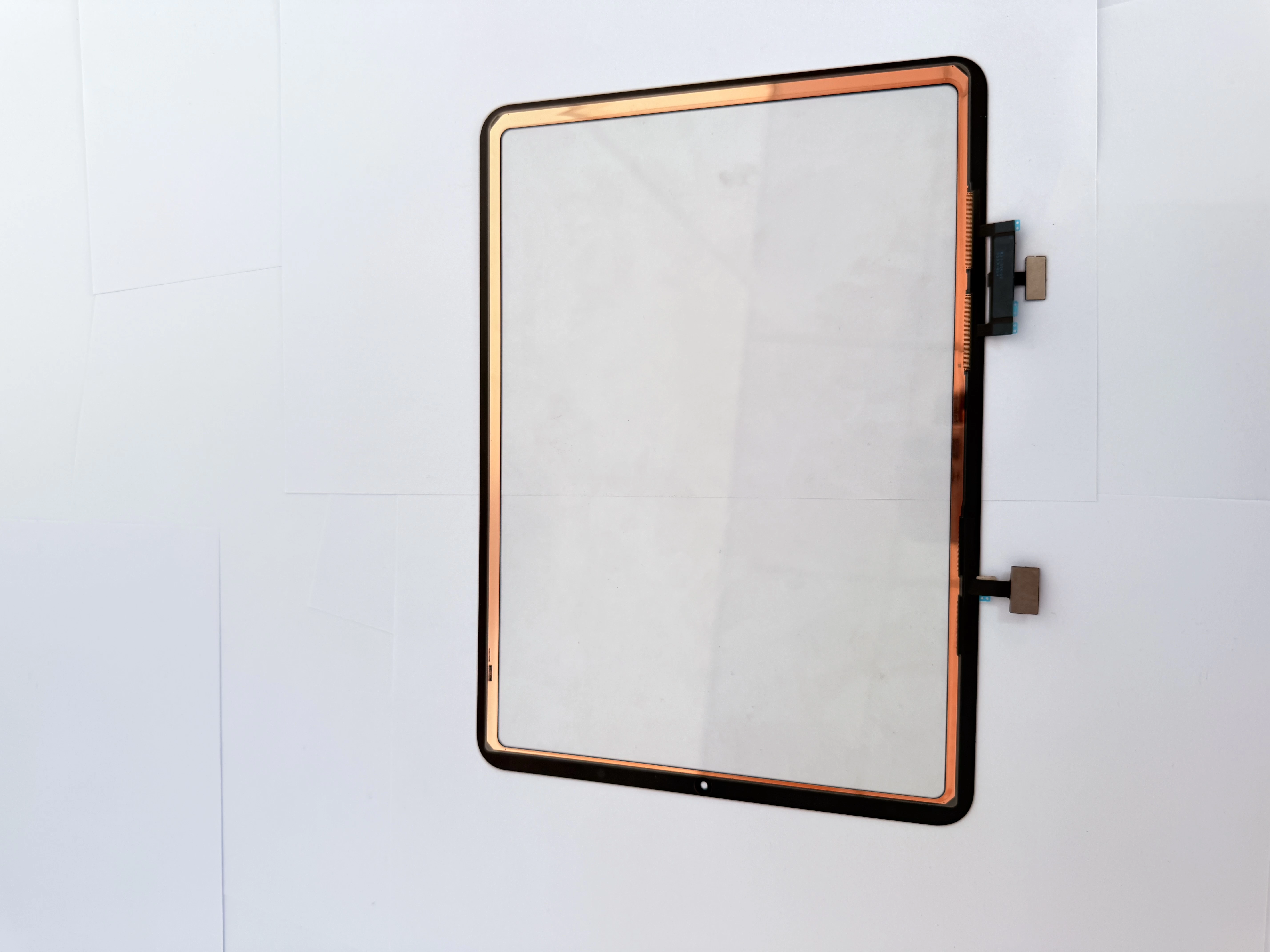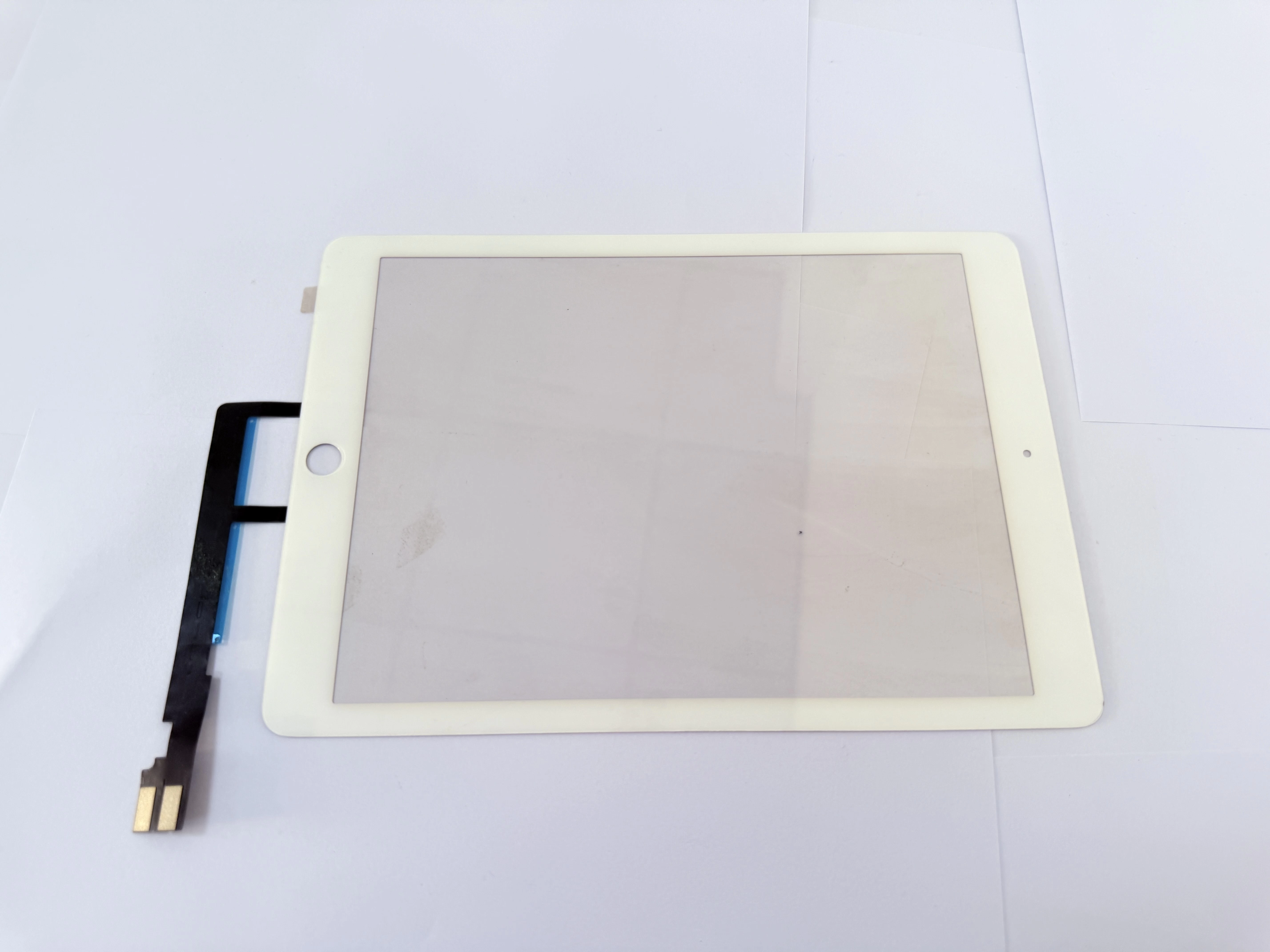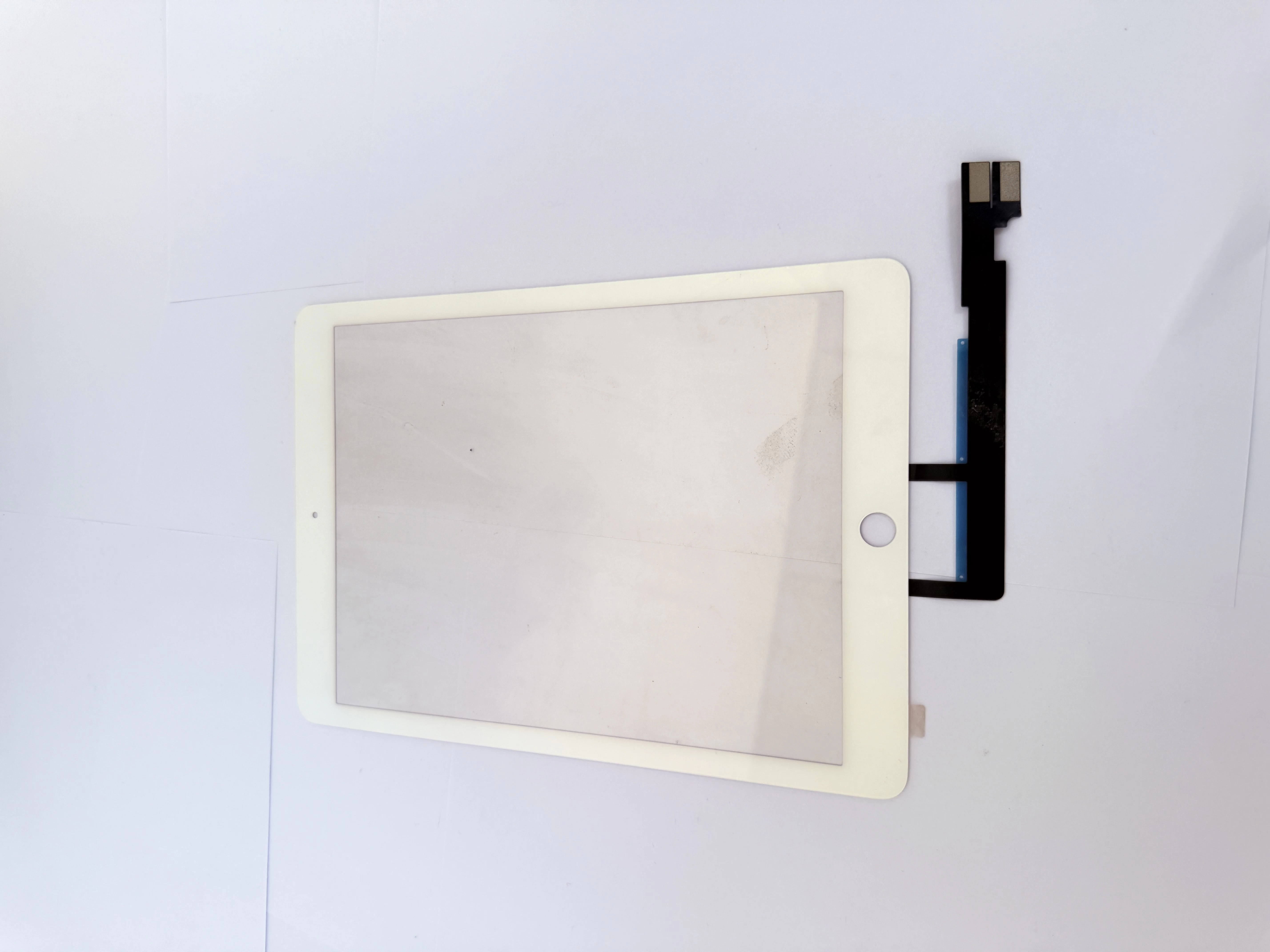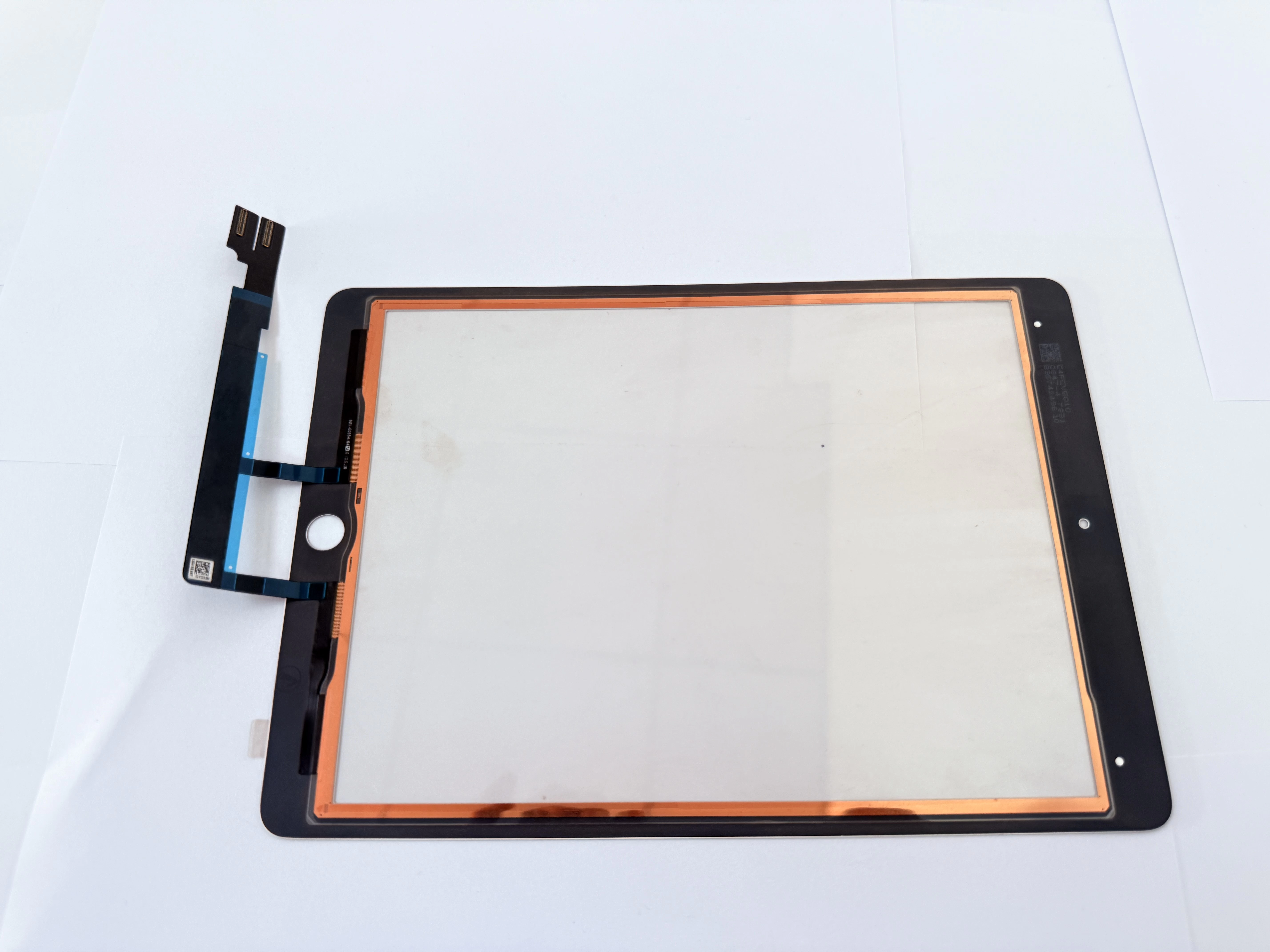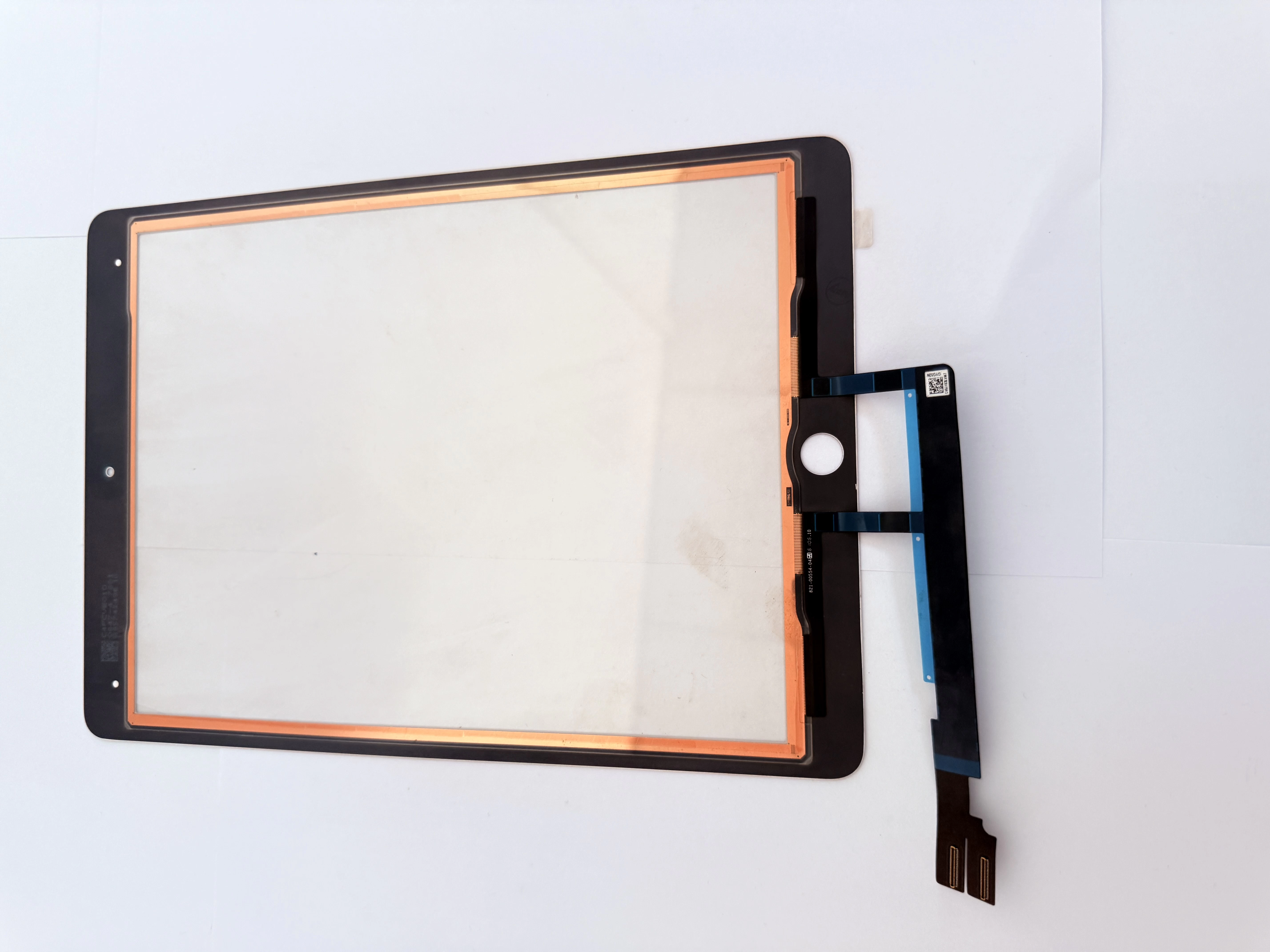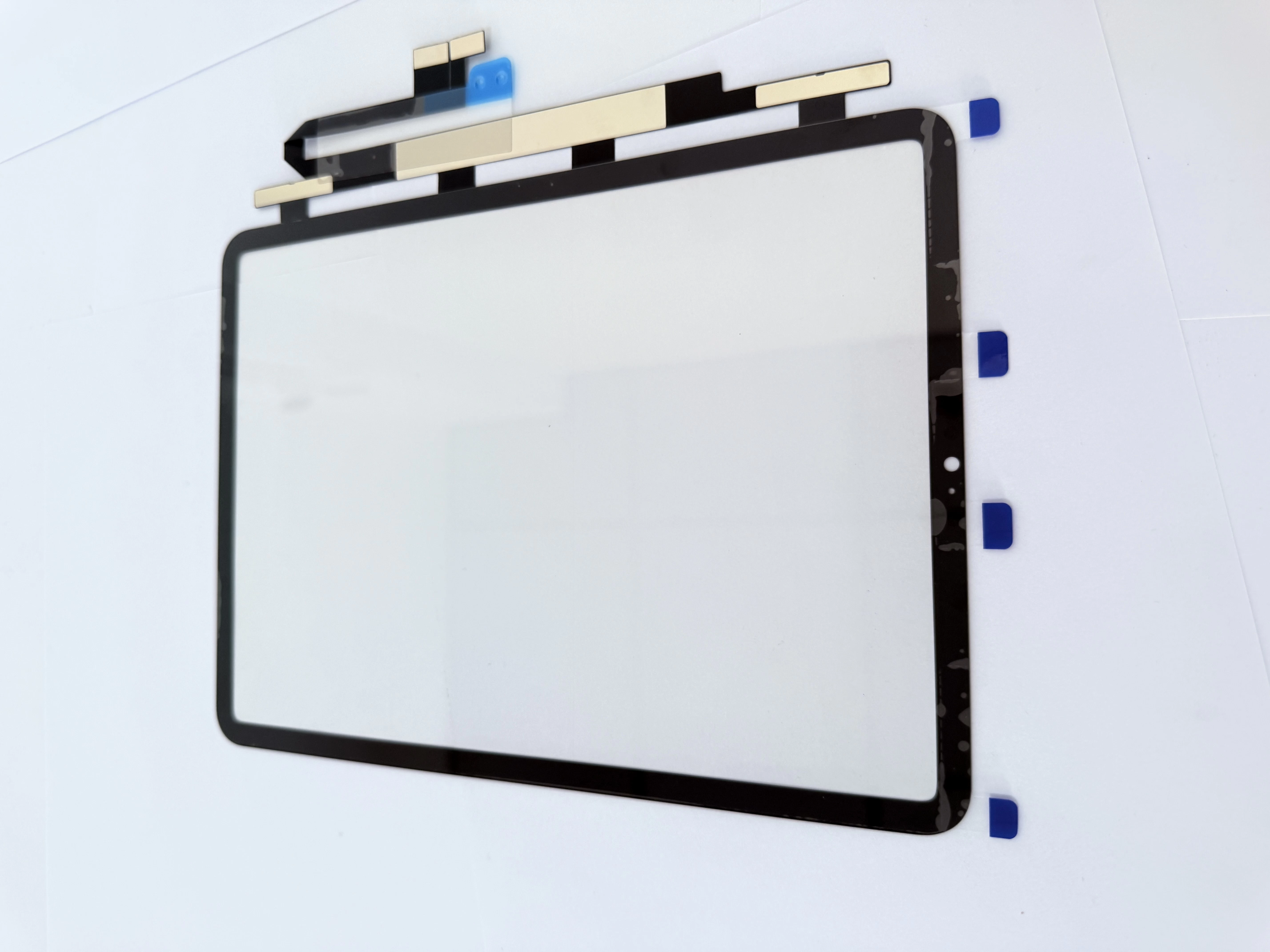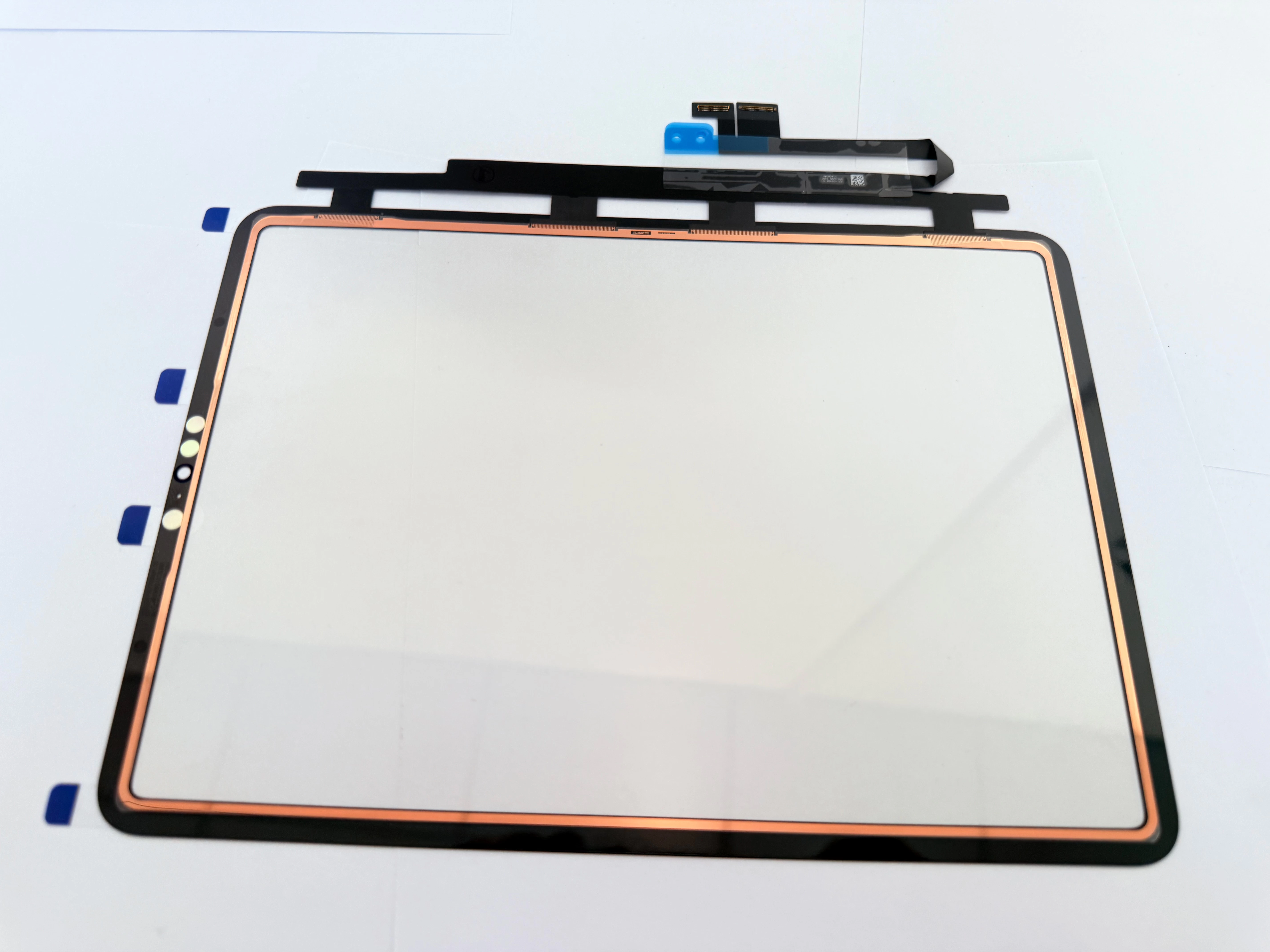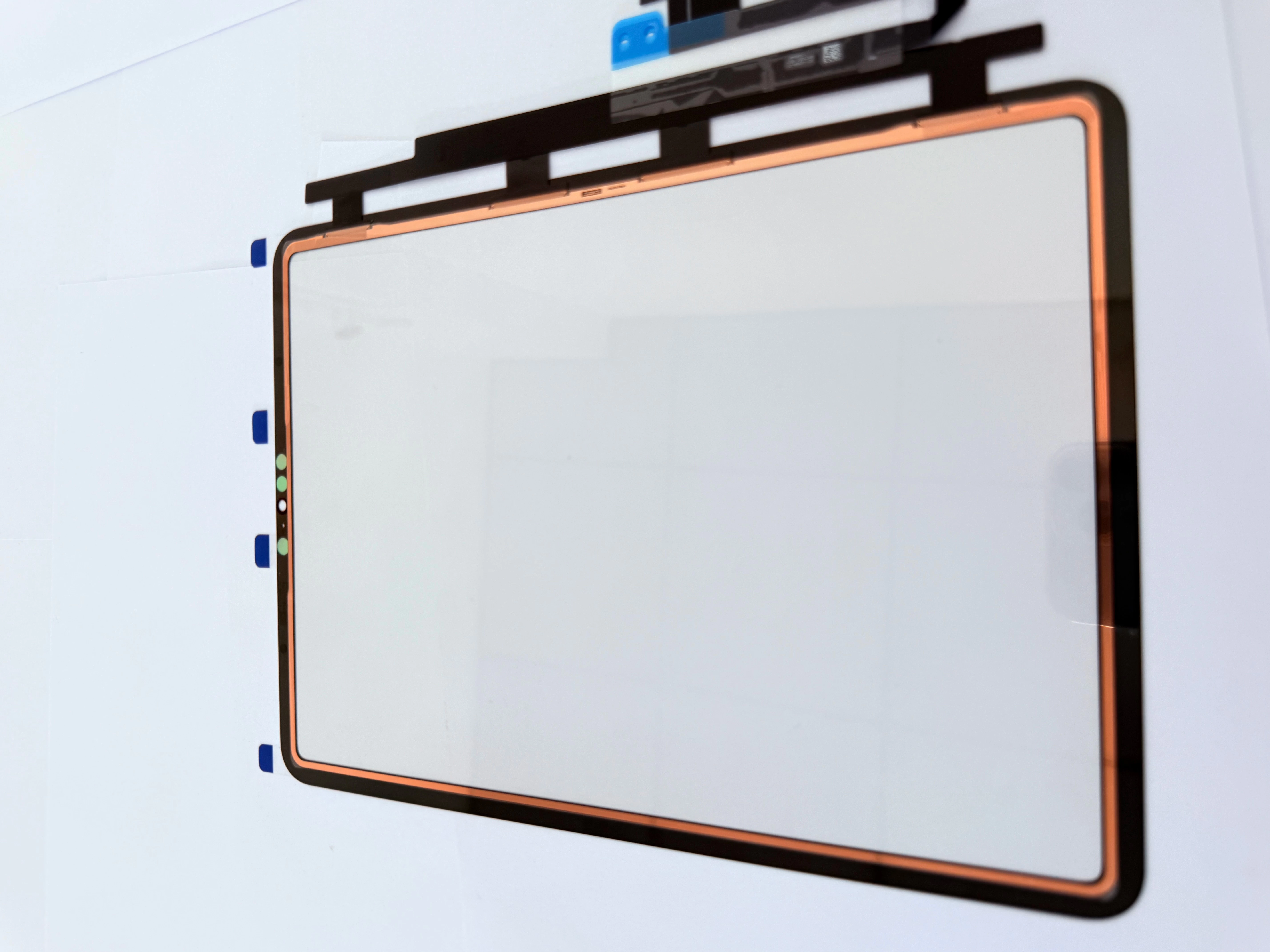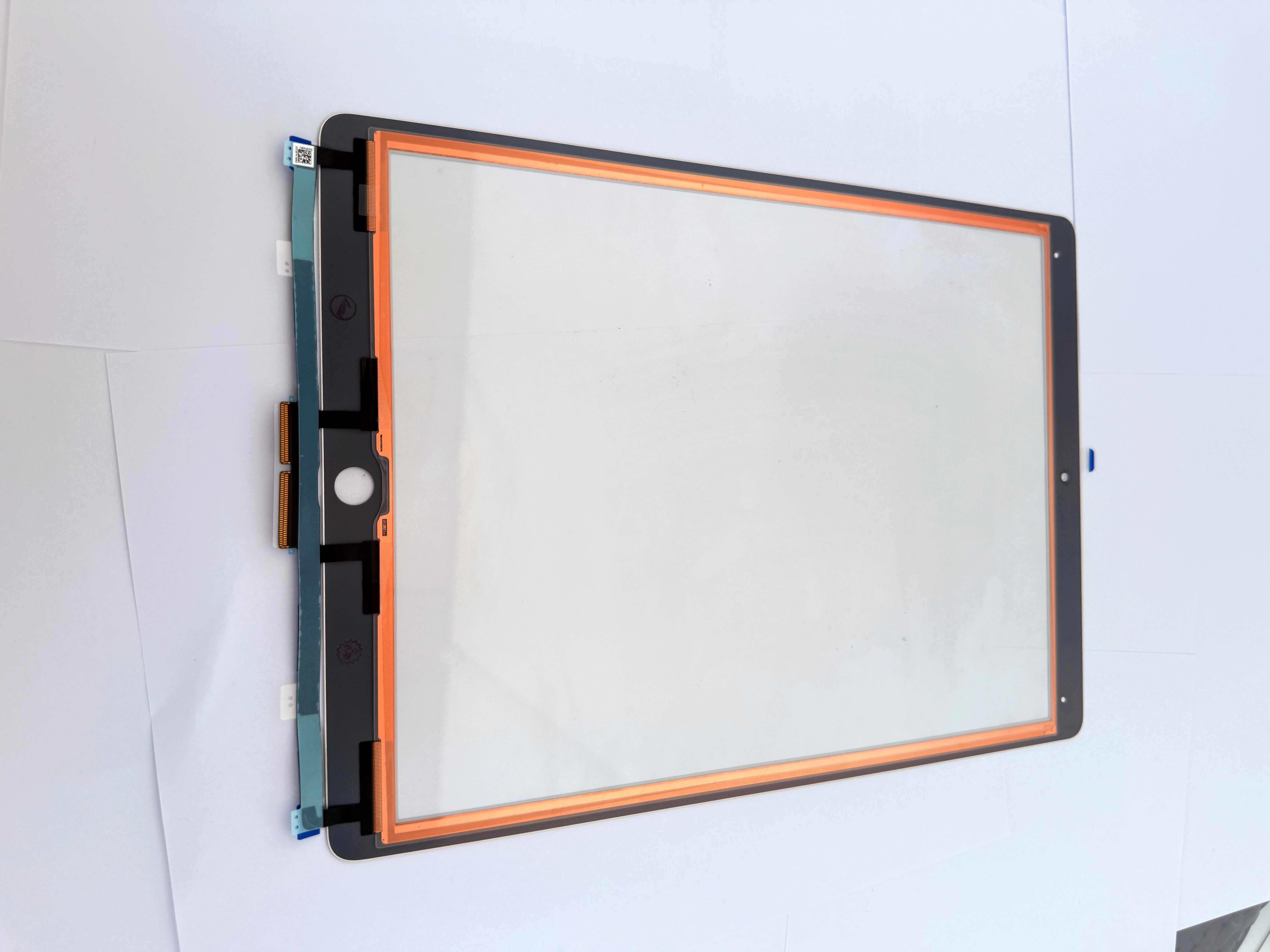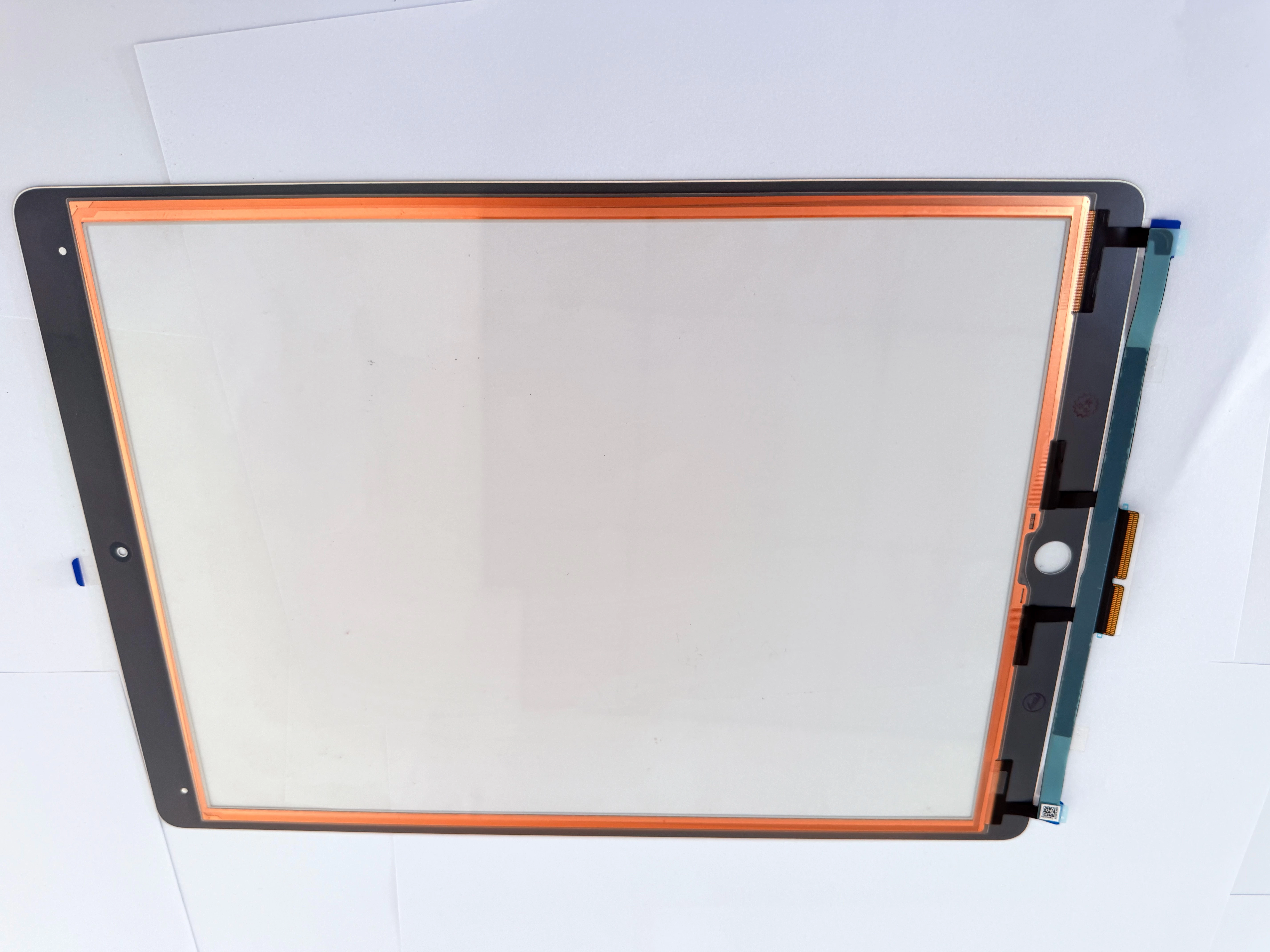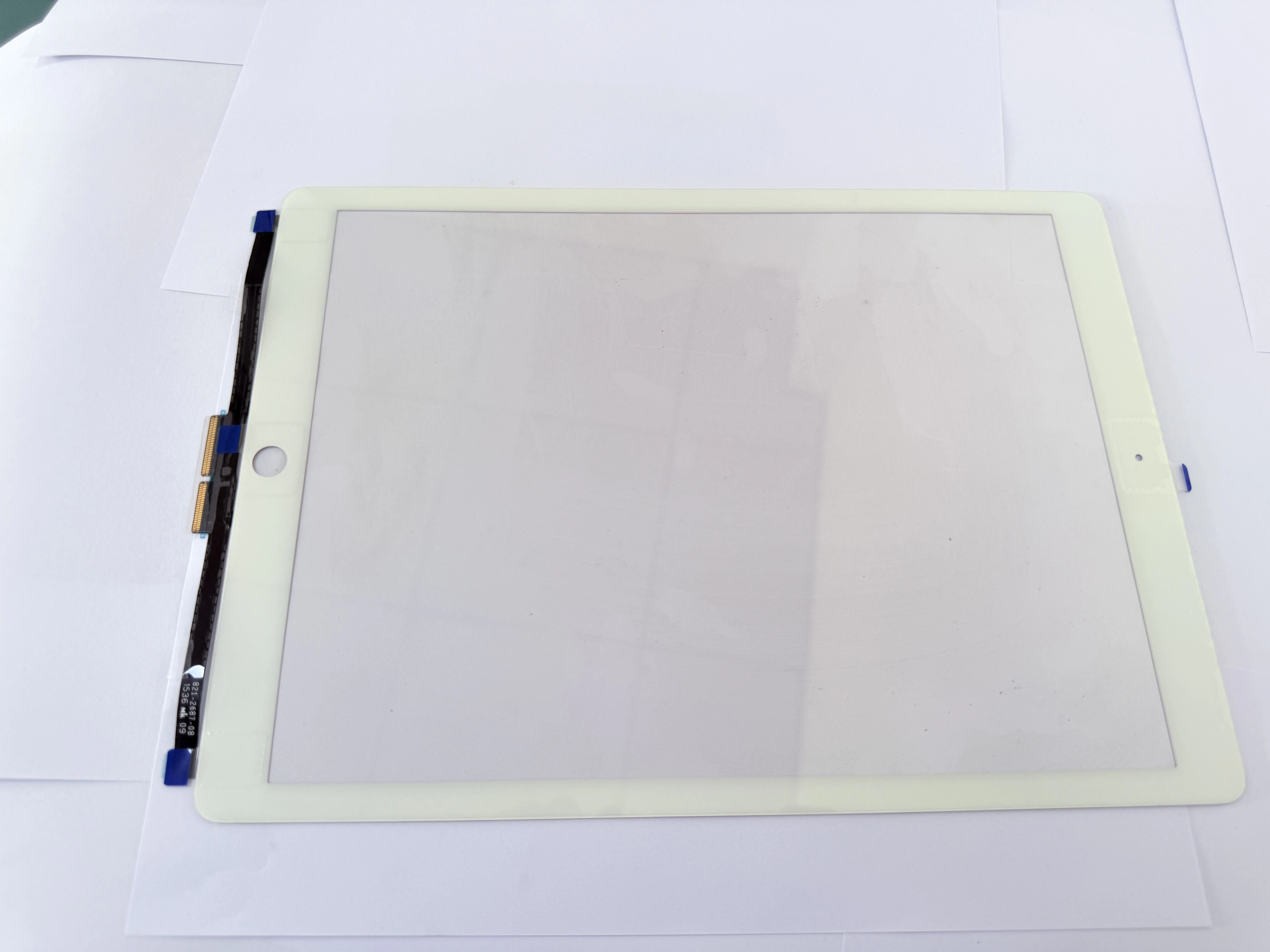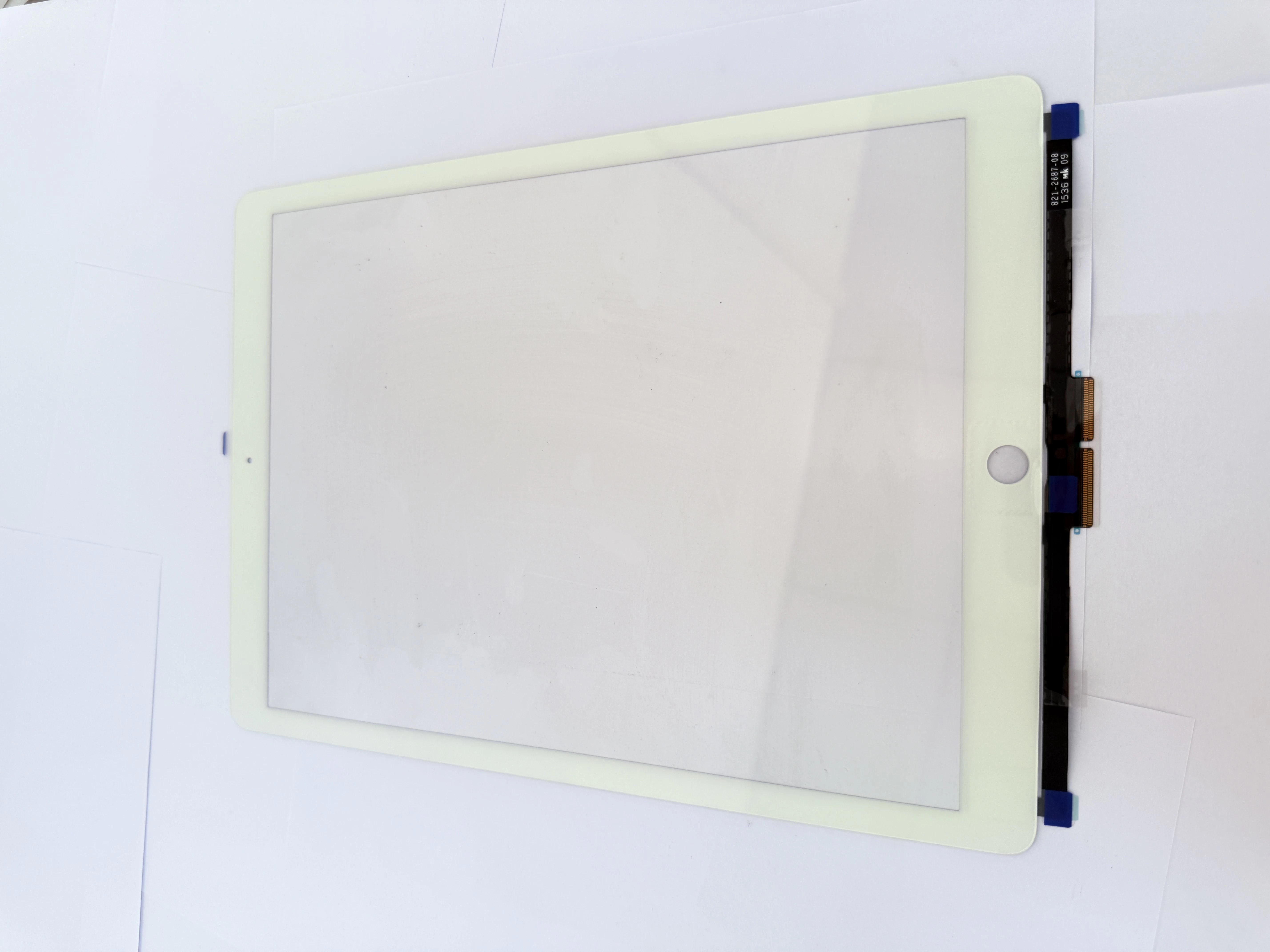
If there’s one feature that defines the iPad experience, it’s definitely the touch screen. Smooth, responsive, and intuitive, it turns a flat piece of glass into a gateway to work, study, entertainment, and creativity. Whether you’re scrolling through social media, taking notes with an Apple Pencil, editing photos, or even using split-screen to multitask, the touch screen is the bridge between you and your device.
I’ve been using iPads for years, and from the first generation to the latest models, the evolution of the touch screen has been remarkable. What used to feel like a "nice-to-have" feature has become an indispensable part of daily life. But here’s the thing: many of us use the iPad touch screen every day, yet we barely scratch the surface of its potential. We know how to tap, swipe, and pinch to zoom, but there are hidden tricks and maintenance tips that can make your experience even smoother—without spending a dime.
Today, I want to share my personal experience with iPad touch screens: common issues I’ve encountered, simple fixes that actually work, and hidden features that will save you time. Whether you’re a student who uses your iPad for notes, a professional who relies on it for work, or someone who just loves using it for streaming and gaming, these tips will help you get the most out of your iPad’s touch screen.
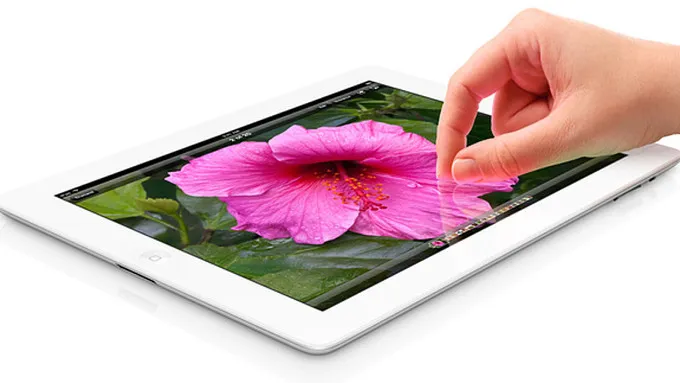
First: Why Your iPad Touch Screen Might Feel "Off" (And How to Fix It)
We’ve all been there: you tap an app icon, and it takes a second to open; you try to scroll, and the screen lags; or worse, it registers a tap where you didn’t even touch. Before you panic and rush to the Apple Store, there are a few simple troubleshooting steps you can try at home—most of which take less than 5 minutes.
The first and easiest fix is to clean the screen. Our fingers naturally produce oil, and over time, that oil builds up on the touch screen, creating a barrier that can interfere with responsiveness. Grab a soft, lint-free cloth (the one that comes with your glasses works great) and wipe the screen gently—no harsh chemicals, no excessive pressure. I do this once a day, and it makes a huge difference in how smooth the screen feels.
If cleaning doesn’t work, try restarting your iPad. Sometimes, background apps or temporary glitches can cause the touch screen to lag. Hold down the power button and either the volume up or down button (depending on your iPad model) until the slider appears, then slide to power off. Wait 30 seconds, then turn it back on. More often than not, this fixes minor touch issues.
Hidden Touch Screen Features You Need to Try
Beyond the basics, the iPad touch screen has some hidden features that are game-changers—especially if you use your iPad for productivity. Let me share my two favorites:
1. Tap to Wake: Instead of pressing the power button every time you want to check your iPad, you can just tap the screen twice to wake it up. To enable this, go to Settings > Accessibility > Touch > Tap to Wake. It’s a small feature, but it saves so much time over the course of a day.
2. AssistiveTouch for One-Handed Use: If you often use your iPad with one hand, AssistiveTouch is a lifesaver. It adds a small floating button to your screen that you can tap to access common functions like home, back, or control center—no need to stretch your fingers to reach the edges. Go to Settings > Accessibility > Touch > AssistiveTouch to turn it on and customize the buttons.
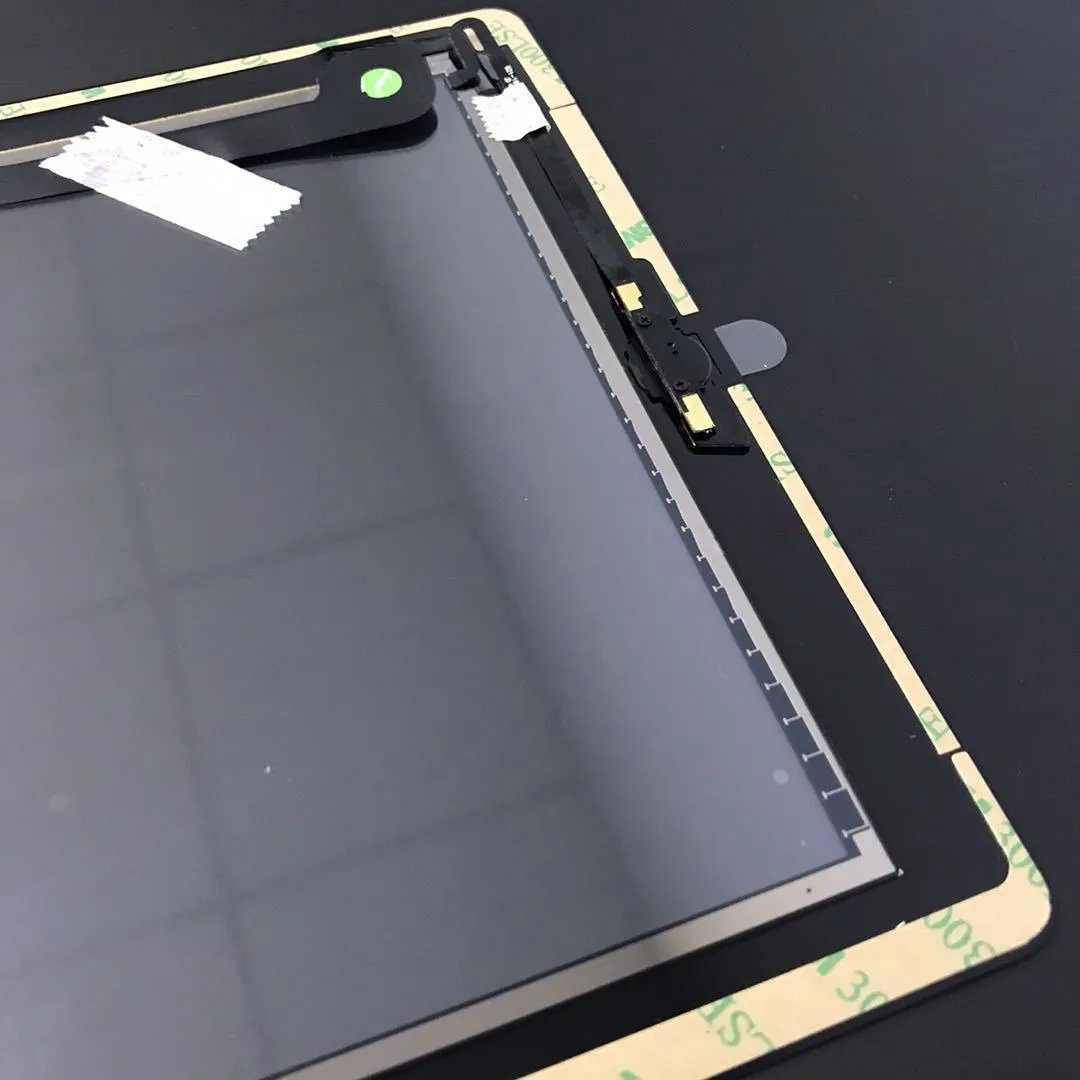
Long-Term Maintenance: Keep Your Touch Screen in Top Shape
A little maintenance goes a long way in keeping your iPad touch screen working like new. Here are a few habits I’ve formed over the years:
- Avoid using sharp objects on the screen: Even if you have a screen protector, using a pen, nail, or other sharp tool can scratch the screen or damage the touch sensors.
- Use a high-quality screen protector: A good screen protector not only prevents scratches but also reduces glare and fingerprints. I prefer matte screen protectors for note-taking—they feel more like paper and reduce reflections.
- Don’t expose your iPad to extreme temperatures: Extreme heat or cold can damage the touch screen’s sensitivity. Avoid leaving it in a hot car or outside in freezing weather.
At the end of the day, the iPad touch screen is more than just a feature—it’s the heart of the device. By taking a little time to clean it, troubleshoot minor issues, and learn its hidden features, you can make your iPad work harder for you. Whether you’re a long-time iPad user or a new owner, these tips will help you get the most out of your touch screen experience.
Do you have any favorite iPad touch screen tricks? Or have you encountered any issues that you couldn’t fix? Let me know in the comments below—I’d love to hear your thoughts!