
Category: How-To & Tips
Reading Time: 3 Minutes
Reading Time: 3 Minutes
Before you rush to a repair shop or mail your iPad away, it is worth checking if your "broken" touchscreen is actually just suffering from a software glitch or an accessory conflict. Here are three quick things to try:
- The "Case" Test: Sometimes, a poorly fitted screen protector or a thick protective case can press against the edges of the screen, causing "ghost touches" or unresponsive areas. Remove all accessories and see if the touch response improves.
- The Forced Restart: Software bugs can freeze the digitizer drivers.
- For iPads without a Home Button: Press and quickly release Volume Up, press and quickly release Volume Down, then press and hold the Top button until the device restarts.
- For iPads with a Home Button: Hold the Home and Top (or Side) buttons simultaneously until you see the Apple logo.
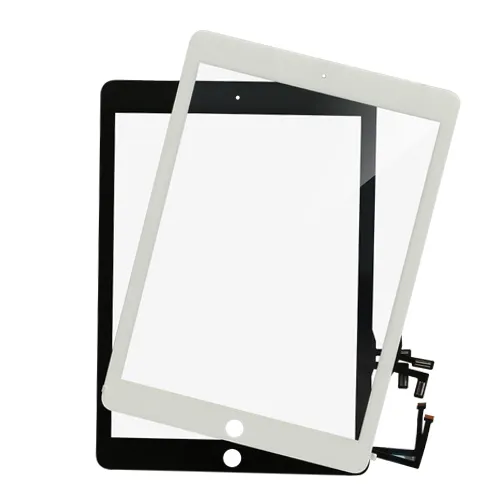
- Check for Swelling: Look at your iPad from the side. Is the screen slightly lifting from the frame? A swollen battery can put pressure on the back of the screen assembly, causing touch malfunctions. If you see swelling, stop using the device immediately and seek professional help.
If none of these work and you still have dead zones, it is likely a hardware failure in the touch layer.