
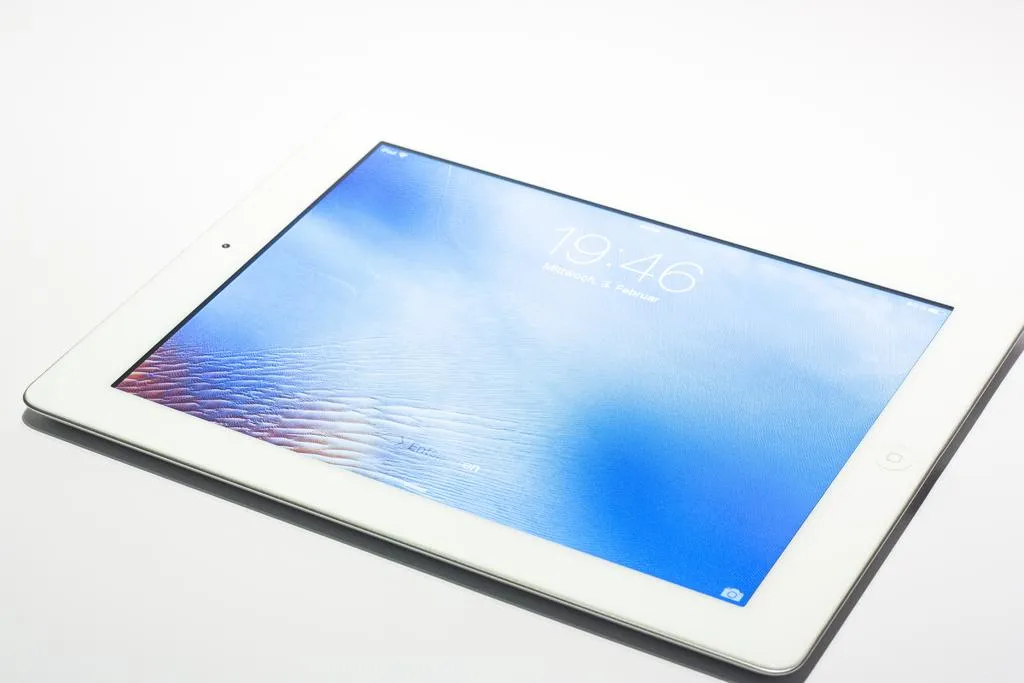
iPad Touch Screen: From Working Principles to Repair Solutions
The seamless experience of an iPad hinges on its touch screen—a deceptively simple yet technologically sophisticated component. Whether streaming, drawing, or working, it serves as the core bridge between users and the digital world. But have you ever wondered how this glass panel actually works? Or why it occasionally "misbehaves" and becomes unresponsive? This blog will dissect the secrets of the iPad touch screen and provide practical troubleshooting tips.
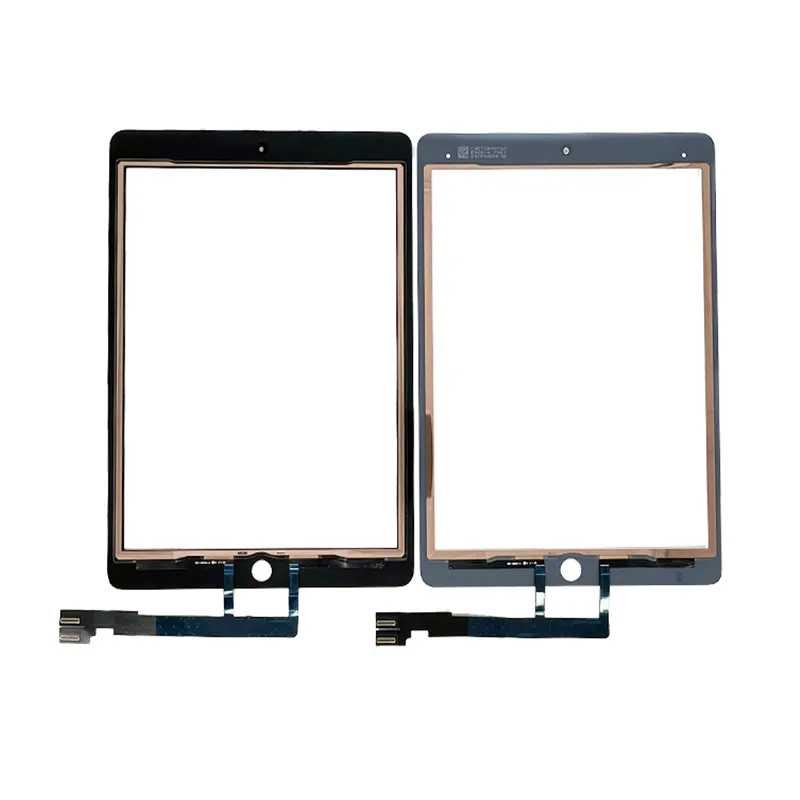
I. How iPad Touch Screens Work: The Magic of Capacitive Sensing
iPads utilize capacitive touch screens, which operate on the principle of sensing electrical current from the human body. The screen surface is coated with a transparent conductive material (such as indium tin oxide), creating a microscopic electrostatic field. When a finger touches the screen, the body's electrical charge couples with the screen's electric field, forming a capacitive link that causes a minute change in charge at the contact point. Touch sensors beneath the screen detect this change, convert the signal into coordinate data, and transmit it to the processor—enabling precise touch control.
This technology excels in multi-touch support, rapid response, and high light transmittance. However, it only responds to conductive objects (like fingers), rendering it incompatible with regular gloves or insulating materials.
II. Common Causes and Solutions for iPad Touch Screen Failures
When the touch screen lags, becomes unresponsive, or registers random inputs, don't rush to a repair shop—first, investigate these potential causes:
Software Issues: System or App Glitches
- System Lag: Temporary iOS glitches can cause touch delays. Try a force restart (varies by model; e.g., for full-screen iPads, quickly press Volume Up, then Volume Down, then hold the Power button) or update to the latest OS version.
- App Conflicts: Third-party apps may interfere with touch response. Restart the device and check if the issue persists; if it does, uninstall recently added apps.
- Insufficient Storage: When iPad storage is nearly full, system performance drops, potentially affecting touch responsiveness. Clear unnecessary files or uninstall unused apps to free up space.
Hardware Issues: Physical Damage or Wear
- Screen Contamination or Moisture: Oil, water, or dust can disrupt capacitive sensing. Clean the screen with a soft microfiber cloth and ensure it's dry before use.
- Screen Protector Problems: Low-quality or poorly adhered protectors may interfere with touch signals. Remove the protector to test if functionality returns.
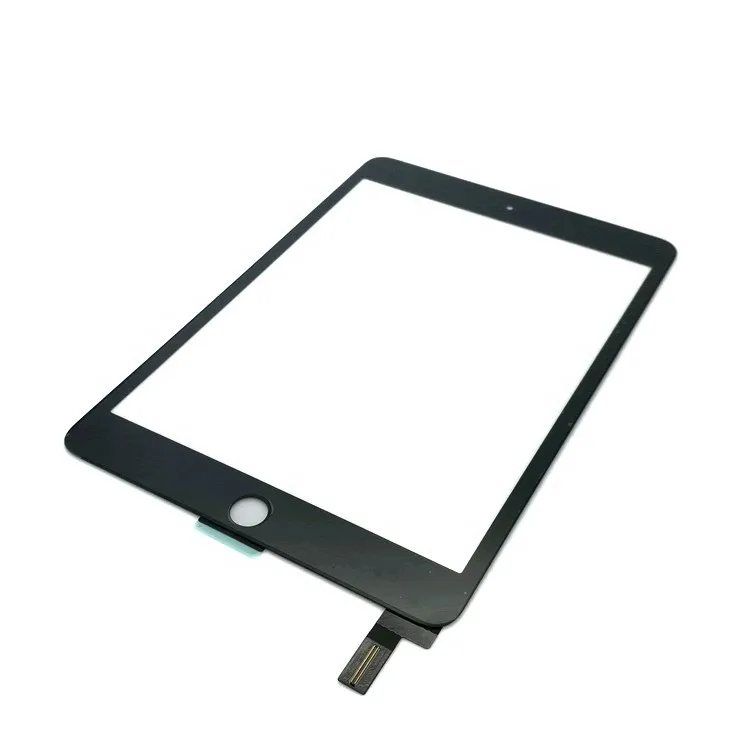
- Physical Damage: Drops or pressure can loosen touch screen flex cables or damage the touch layer. If the screen is cracked or partially unresponsive, seek professional repair for screen replacement.
- Battery or Charging Issues: Overheating batteries or non-OEM chargers may cause voltage instability, impacting touch performance. Avoid using the iPad while charging and use only Apple-certified accessories.
Environmental Factors: External Interference
- Extreme Temperatures: Very hot or cold environments can temporarily affect screen sensitivity. Allow the device to return to room temperature before use.
- Electromagnetic Interference: Strong electromagnetic fields (e.g., near microwaves or industrial equipment) may disrupt touch signals. Move away from such sources.
Pro Tip: When to Seek Professional Help
If none of the above solutions work, the issue may lie with the digitizer assembly (the touch-sensitive layer) or the logic board. In such cases, contact Apple Support or an authorized service provider. For out-of-warranty repairs, consider reputable third-party shops—but ensure they use high-quality replacement parts to avoid recurring issues.
Final Thoughts
The iPad touch screen is a marvel of modern engineering, blending physics and design to create an intuitive user experience. While occasional glitches are inevitable, understanding their root causes empowers you to troubleshoot effectively. Whether it's a software hiccup or a hardware fault, most touch screen issues can be resolved with patience and the right approach.
So next time your iPad's screen acts up, take a deep breath, follow this guide, and get back to enjoying your digital world—seamlessly.
888
0
520
1